
| Method | Best for | How |
|---|---|---|
| Built-in plugin browser | Discovering curated skills | /plugin in Claude Code |
| Filesystem | Custom or private skills | Add SKILL.md to ~/.claude/skills/ |
| Third-party registry | Cross-agent skills, security-scanned | Give your agent polyskill.ai/agent.md |
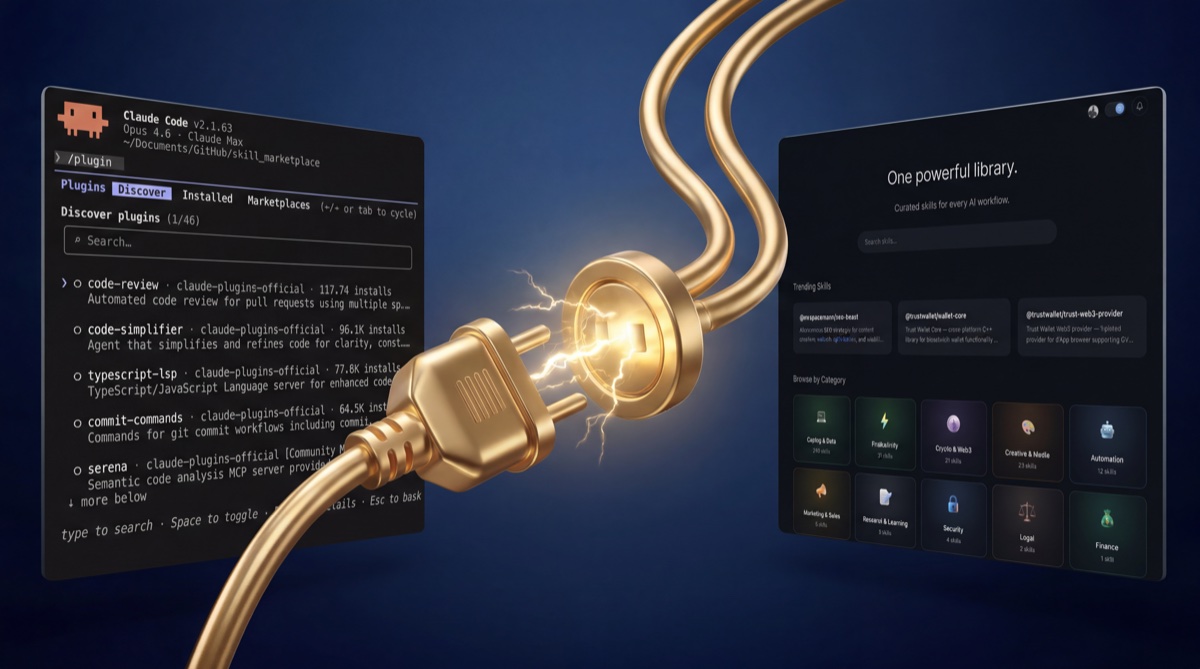
Claude Code supports reusable skills and plugins — packaged instructions, tool definitions, and workflows that extend what the agent can do out of the box. Whether you call them Claude Code skills or Claude Code plugins, the concept is the same: give your AI coding agent new abilities it doesn't have by default. There are three ways to add them: Claude Code's built-in plugin browser, manual file installation, or a third-party registry. This guide walks through all three methods with step-by-step instructions.
How to Add Skills to Claude Code
To add skills to Claude Code, use one of three methods: the built-in /plugin browser (easiest), a manual SKILL.md file in ~/.claude/skills/ (most control), or the PolySkill registry (cross-agent, security-scanned). Claude Code detects newly installed skills automatically — no restart required. Each method is covered step by step below, with a decision guide for picking the right one.
What Are Claude Code Skills?
A skill is a reusable package of instructions that Claude Code loads into its context when relevant. Each skill is a SKILL.md file: YAML frontmatter for metadata, followed by markdown instructions that tell Claude how to behave.
Skills can do different things depending on what you need:
- Coding standards: enforce naming conventions, file structure, or review checklists across a team
- Workflow automation: define multi-step processes like "run tests, lint, then commit with a conventional message"
- Domain expertise: give Claude specialized knowledge about your stack, your API, or a specific framework
- Custom commands: create slash commands like
/deployor/review-prthat trigger specific behavior
Skills live in one of two places: ~/.claude/skills/ for personal skills that apply everywhere, or .claude/skills/ inside a project for repo-scoped skills that travel with the codebase. Claude Code detects them automatically; no restart required. Once you understand how to use Claude Code skills, they become one of the fastest ways to standardize workflows across a team.
Claude Code Plugins vs Skills: What's the Difference?
You'll see both terms, "skills" and "plugins," used when talking about extending Claude Code. They overlap significantly, but there's a technical distinction worth understanding.
A skill is a single SKILL.md file: YAML frontmatter plus markdown instructions that tell Claude how to behave in specific situations. Skills are the atomic unit — one file, one capability. A plugin is a bundle that can package one or more skills alongside other extensions like hooks (shell commands triggered by events), MCP server configurations, and settings overrides. Plugins are how Claude Code's built-in marketplace distributes packages.
In practice, most plugins contain a single skill. The distinction matters mainly when you're building your own extensions; if you just need to add instructions, create a skill. If you need to bundle instructions with hooks or MCP configs, create a plugin.
| Aspect | Skill | Plugin |
|---|---|---|
| Format | Single SKILL.md file |
Directory with skills + hooks + MCP configs |
| Scope | One capability or behavior | Bundles multiple capabilities together |
| Install method | Drop into ~/.claude/skills/ |
/plugin command or manual directory setup |
| Discovery | Manual or third-party registry | Built-in marketplace via /plugin |
| Can include hooks? | No | Yes |
| Can include MCP configs? | No | Yes |
When this guide says "install a skill," the same steps work for plugins too; the install paths and detection mechanism are identical. The /plugin browser (Method 1) installs plugins specifically; filesystem installs (Method 2) and third-party registries (Method 3) work with both.
Method 1: Claude Code's Built-In Plugin Browser
Claude Code has a built-in plugin system for discovering and installing skills without leaving your terminal. This is how you install Claude Code plugins, packages that bundle skills alongside other extensions like hooks and MCP server configurations.
Step 1: Open the plugin browser
In any Claude Code session, type:
/pluginThis opens an interactive browser with four tabs:
- Discover: browse available plugins from connected marketplaces
- Installed: view and manage plugins you've already added
- Marketplaces: add, remove, or update marketplace catalogs
- Errors: debug plugin loading issues
Step 2: Browse and install
Navigate to the Discover tab, find a plugin, and press Enter to install it. You'll be asked to choose a scope:
| Scope | Location | Applies to |
|---|---|---|
| User | ~/.claude/ |
All your projects |
| Project | .claude/ in repo root |
This repository only |
| Local | .claude.local/ |
This machine, not committed |
Step 3: Add more marketplaces (optional)
The official marketplace is available by default. To add community or third-party marketplaces:
/plugin marketplace add owner/repoThis accepts GitHub repositories, Git URLs, local paths, or remote URLs. Once added, plugins from that marketplace appear in the Discover tab.
Pros: Zero setup, integrated into Claude Code, curated official marketplace available out of the box.
Cons: Limited to what's published to connected marketplaces. No cross-agent compatibility; plugins only work with Claude Code.
Method 2: Installing Skills from the Filesystem
You don't need a marketplace to install Claude Code skills. Claude Code watches the ~/.claude/skills/ and .claude/skills/ directories and loads any valid SKILL.md files it finds.
Step 1: Create the skill directory
mkdir -p ~/.claude/skills/my-skillUse ~/.claude/skills/ for personal skills or .claude/skills/ in a project root for team skills that get committed to version control.
Step 2: Write the SKILL.md file
Create ~/.claude/skills/my-skill/SKILL.md with two parts: YAML frontmatter and markdown instructions:
---
name: my-skill
description: Enforces our team's TypeScript conventions and review checklist.
user-invocable: true
---

When writing or reviewing TypeScript code, follow these rules:

1. Use explicit return types on all exported functions
2. Prefer `interface` over `type` for object shapes
3. No `any` — use `unknown` and narrow with type guards
4. All async functions must have error handling
Step 3: Verify it loaded
Start a new Claude Code session (or continue an existing one) and type / followed by your skill name. If the skill appears in the autocomplete list, it's loaded. Claude will also invoke it automatically when its description matches the current conversation context.
Frontmatter reference
The YAML frontmatter supports these fields:
| Field | Purpose |
|---|---|
name |
Slash command name (kebab-case, max 64 chars). Defaults to the folder name. |
description |
What the skill does. Claude uses this to decide when to auto-invoke. |
user-invocable |
If true, appears in the / slash command menu. If false, only Claude can invoke it. |
disable-model-invocation |
If true, only you can invoke it (Claude won't auto-load). Good for destructive commands like /deploy. |
allowed-tools |
Tools Claude can use without per-use approval when the skill is active (e.g., Read, Grep, Bash). |
context |
Set to fork to run the skill in an isolated subagent instead of the main conversation. |
Pros: Full control over skill content, works with private and proprietary instructions, skills committed to .claude/skills/ travel with the repo.
Cons: Manual setup for each skill. No discovery or search, so you need to know what you want before creating it.
Method 3: Using the PolySkill Registry
PolySkill is a third-party, open-source registry for AI agent skills. It works with Claude Code but isn't limited to it. Published skills use an open format that adapters translate for different agents.
Step 1: Install the CLI
npm install -g @polyskill/cliStep 2: Search for skills
polyskill search "typescript conventions"Or browse the web UI at polyskill.ai/browse for category-based discovery with full-text search.
Step 3: Install a skill
polyskill install @author/skill-nameThis downloads the skill and places it in ~/.claude/skills/ where Claude Code picks it up automatically.
What makes this different
- Includes Claude Code's official skills: all of the skills available through Claude Code's built-in plugin marketplace are also published on this registry, so you get everything from Method 1 plus community contributions.
- Cross-agent compatibility: skills from this registry aren't locked to Claude Code. They work with other AI agents that support the open skill format.
- Security scanning: every published skill goes through static content analysis that checks for credential exfiltration, destructive commands, and pipe-to-shell patterns before it's listed.
- Searchable registry: full-text search across skill names, descriptions, keywords, and categories.
Pros: Searchable registry with security scanning, cross-agent skills, web-based browsing.
Cons: Requires a separate CLI install. Smaller catalog than Claude Code's native ecosystem.
Popular Claude Code Skills Worth Installing
Knowing how to install skills is one thing; knowing which ones are worth installing is another. Here are some of the most useful Claude Code skills and plugins across different categories:
Coding standards and review
- Code Reviewer: automatically reviews code changes for bugs, logic errors, security vulnerabilities, and adherence to project conventions. Runs as a subagent with confidence-based filtering so it only flags issues that truly matter.
- Simplify: scans changed code for reuse opportunities, quality issues, and inefficiencies, then fixes them. Good for keeping codebases lean after rapid feature development.
Architecture and planning
- Feature Dev: guided feature development workflow that starts with codebase analysis, designs architecture before writing code, and implements with full context awareness. Useful for non-trivial features that touch multiple files.
- Frontend Architect: creates accessible, performant UI components with proper responsive design. Reviews existing components for WCAG compliance, keyboard navigation, and screen reader support.
Workflow automation
- SEO Beast: autonomous SEO and GEO strategist powered by real search data. Handles keyword research, content optimization, and competitive analysis directly from your terminal.
- Claude Automation Recommender: analyzes your codebase and recommends Claude Code automations: hooks, subagents, skills, and MCP servers tailored to your project.
Finding more skills
Two places to discover skills:
- Built-in marketplace: run
/pluginin Claude Code and browse the Discover tab for curated plugins - PolySkill registry: searchable web catalog with category-based browsing and security scanning for every published skill
Which Method Should You Use?
Now that you know how to add skills to Claude Code, which method should you actually pick? The three methods aren't mutually exclusive; you can use all of them. Here's a decision guide based on what you're trying to do:
| Scenario | Recommended method |
|---|---|
| I want to browse what's popular and get started quickly | Built-in plugin browser (/plugin) |
| I have custom team conventions to enforce | Filesystem (.claude/skills/ in repo) |
| I need a private skill that shouldn't be shared publicly | Filesystem (~/.claude/skills/) |
| I use multiple AI agents and want portable skills | Third-party registry (Method 3) |
| I want to audit skills for security before using them | Third-party registry (security scanning) |
| I'm building a skill for my open-source project | Filesystem for development, third-party registry to publish |
Most developers start with the built-in browser for quick wins, then create filesystem skills as their team's conventions solidify. If you're working across multiple AI coding agents or want to share skills with a broader audience, a third-party registry adds cross-agent distribution and security scanning on top.
Troubleshooting Common Issues
Skill doesn't appear in slash commands
Check the file path. The structure must be ~/.claude/skills/<folder>/SKILL.md, not just a loose SKILL.md in the skills directory. The file name must be exactly SKILL.md (uppercase). Also verify the YAML frontmatter has user-invocable: true if you want it in the / menu.
Claude ignores the skill instructions
Check the description field in your frontmatter. Claude uses this to decide when a skill is relevant. A vague description like "useful tool" won't trigger auto-invocation. Be specific about when the skill should activate. You can always invoke it manually with /skill-name to confirm it works.
YAML frontmatter parse errors
The frontmatter must start and end with exactly --- on its own line. Common mistakes: indentation with tabs instead of spaces, missing quotes around strings that contain colons, or forgetting the closing ---.
Third-party CLI install fails
Requires Node.js 18 or later, and a working Claude Code install underneath it (see how to install Claude Code if claude --version disagrees with what you installed). If you see EACCES permission errors on macOS or Linux, either use a Node version manager like nvm (recommended) or fix npm's global directory permissions instead of using sudo.
Two skills with the same name
If a personal skill (~/.claude/skills/) and a project skill (.claude/skills/) share the same name, the project-scoped skill takes precedence. Rename one of them to avoid confusion. If a skill runs a command you did not expect, your permission mode decides whether Claude asks you first.
Related: Claude Code Router: Complete Guide (2026) | Codex vs Claude Code: Full Comparison (2026) | Claude Code vs Cursor: Full Comparison (2026) | Claude Code vs Gemini CLI (2026) | Claude Code Plugins (2026) | Claude Code Subagents (2026) | Claude Code Hooks (2026) | Claude Code Commands (2026) | Claude Code Memory (2026)
Troubleshooting & FAQs
How do I add skills to Claude Code?
Three ways: run /plugin in Claude Code and install from the Discover tab; drop a SKILL.md file into ~/.claude/skills/ (personal) or .claude/skills/ (project-scoped); or install from the PolySkill registry with the polyskill CLI. Claude Code picks them up automatically, no restart needed. See the three methods above for full steps.
What are Claude Code skills?
Claude Code skills are reusable instruction packages stored as SKILL.md files. Each skill contains YAML frontmatter (name, description, configuration) and markdown instructions that Claude follows when the skill is active. They can automate workflows, enforce coding standards, add domain expertise, and define custom slash commands. See What Are Claude Code Skills? above for details.
How do I install Claude Code plugins?
"Plugins" and "skills" are closely related in Claude Code; plugins are packages that bundle skills alongside other extensions. Install them by running /plugin in any Claude Code session, browsing the Discover tab, and pressing Enter on what you want. See Method 1 for the full walkthrough.
What are the best Claude Code skills?
The best skills depend on your workflow. For discovery, use Claude Code's built-in /plugin browser to see curated options, or browse a third-party registry to search by category: coding standards, automation, debugging, deployment, and more.
Can I create my own Claude Code skill?
Yes. Create a folder inside ~/.claude/skills/ (personal) or .claude/skills/ (project-scoped), add a SKILL.md file with YAML frontmatter and markdown instructions, and Claude Code detects it automatically. See Method 2 for the step-by-step process and frontmatter reference.
Do Claude Code skills work with other AI tools?
Native Claude Code skills (SKILL.md format) are specific to Claude Code. If you need skills that work across multiple AI agents, third-party registries provide open formats with adapters for different platforms. See Method 3 for details.